This article explains how to create a Custom App in Shopify using the Shopify Partner Dashboard (Developer Dashboard).
By using https://www.shopify.com/partners once you have the Shopify Partner account, you will be able to access the Shopify Dev Dashboard.
Custom apps are designed for private, store-specific use and are not publicly listed on the Shopify App Store. They allow store owners and developers to add custom functionality.
Step-by-Step Guide
1. Log in to the Shopify Developer Dashboard
- Go to Shopify Partners and log in with your partner account. Or apply for Partner Account by navigating to https://www.shopify.com/partners here is the help doc - https://help.shopify.com/en/partners/partner-program/getting-started
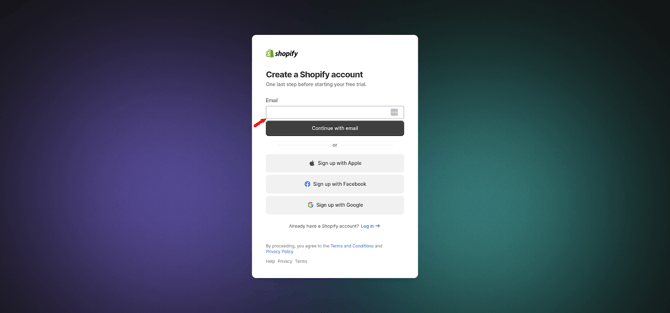
Once logged in click on this link - https://dev.shopify.com/dashboard and this will navigate you to the Dev Dashboard.
Navigate to the Apps section.
- Click Create App.

2. Configure Your App
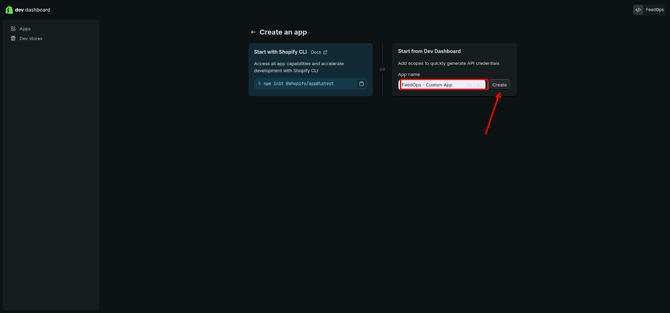
- Enter "FeedOps - Custom App" as App Name and click on Create Button
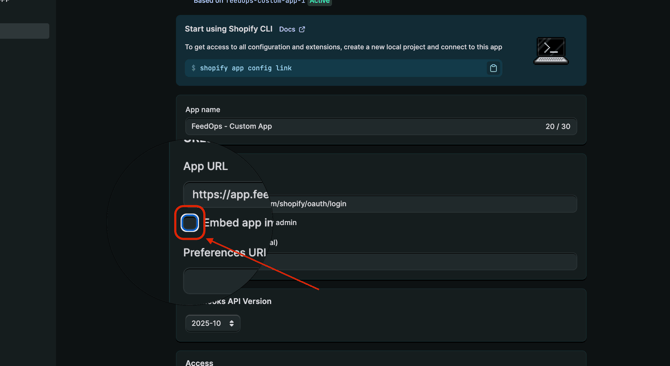
- Add the following App URL,
https://app.feedops.com/shopify/oauth/login.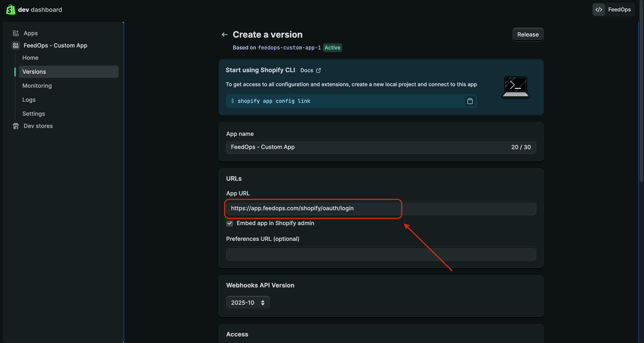
- And uncheck the default Embedded app checkbox:
- Copy and paste the following API scopes in the Scope section.
read_channels,read_price_rules,read_discounts,write_draft_orders,read_draft_orders,read_gift_cards,read_inventory,read_locations,read_markets,read_metaobjects,read_products,read_publications,read_shipping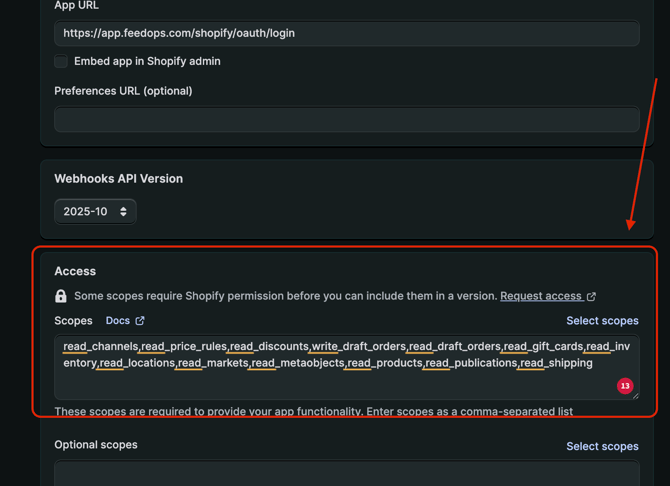
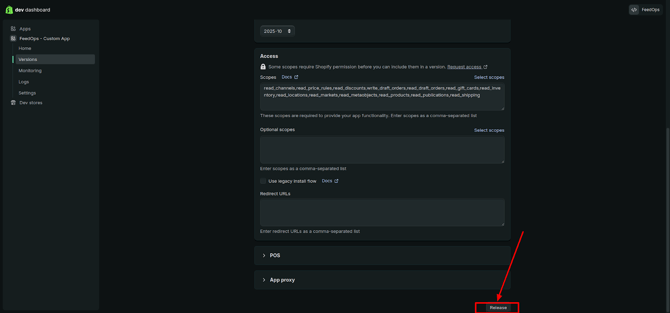
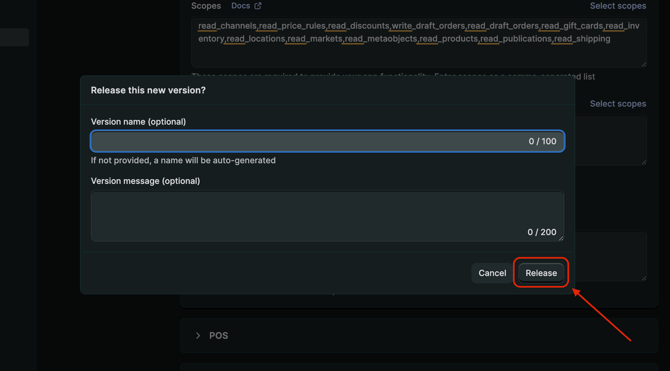
- Now click on the Release button to make it available for installation.
3. Get App Credentials
- Once the app is released, navigate to the Settings section in the Shopify Developer Dashboard.
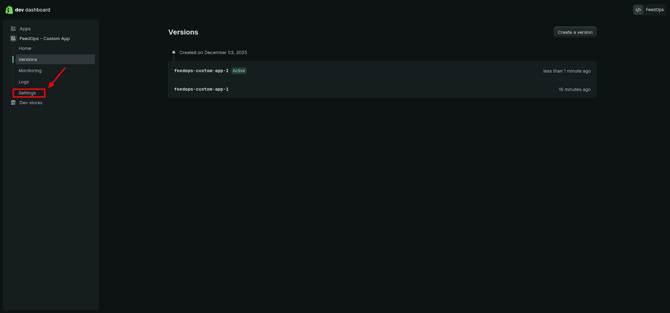
- Copy the Client ID and API Secret Key from the settings. These credentials will be used to connect your app with the Shopify store.
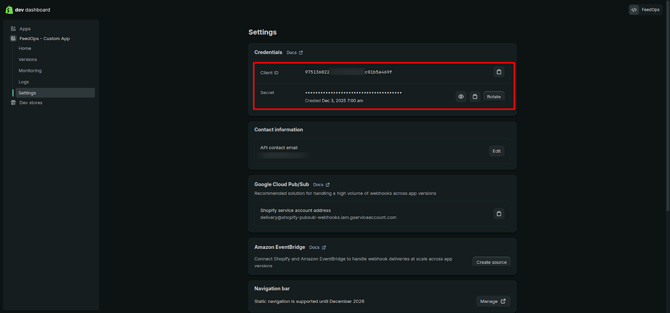
4. In FeedOps, enter the credentials as follows
Enter the following details:
- Shopify Domain
https://kb.feedops.com/knowledge/how-to-find-default-shopify-domain - Shopify Custom App Client ID
- Shopify Custom App API Secret Key
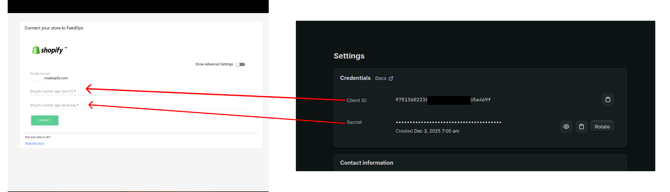
Once website gets connected go to the Shopify developer dashboard again as there is no action required in FeedOps.
5. Select the custom Distribution option for your app.
- Return to the Shopify Developer Dashboard.
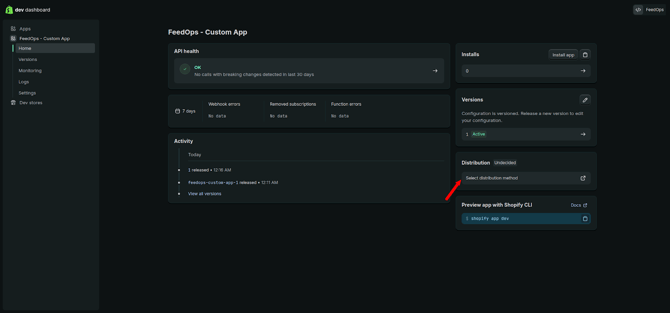
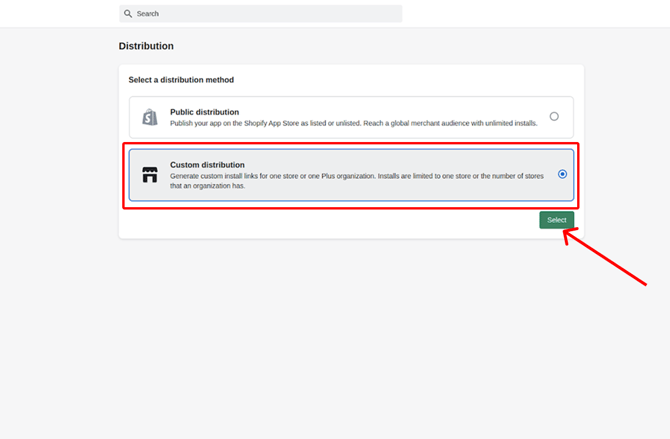
Click on Select distribution method
- Choose Custom Distribution and click Select. App can be installed by a single store or Plus organization.
- Add a store domain (the same one you entered in FeedOps while adding the website) and generate the install link
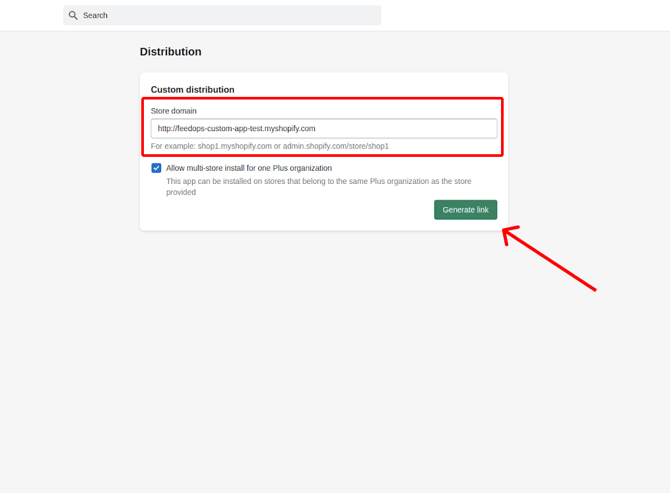
- This app will only be available to install on stores that are part of the same Plus organization as yourStoreDomain.myshopify.com
6. Install the Custom App on Shopify Store
- Copy the generated install link.
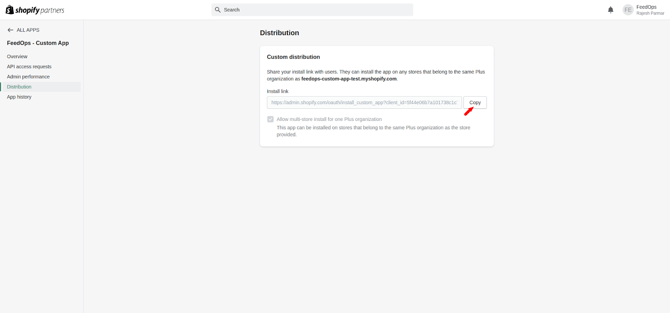
- Paste it into your browser. You will be redirected to the Shopify Partner Dashboard.
- Select the correct store where the app needs to be installed.
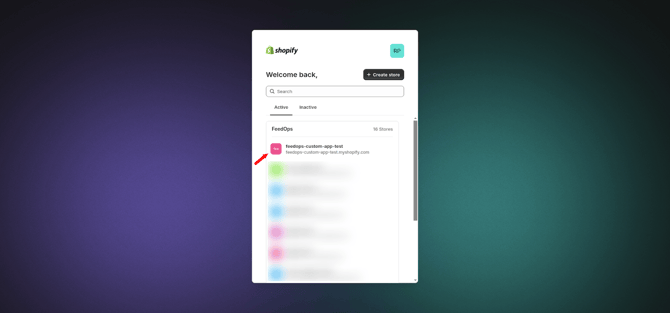
- Once the user selects the store, it redirects to the install page
- Click Install and wait for the installation to complete.
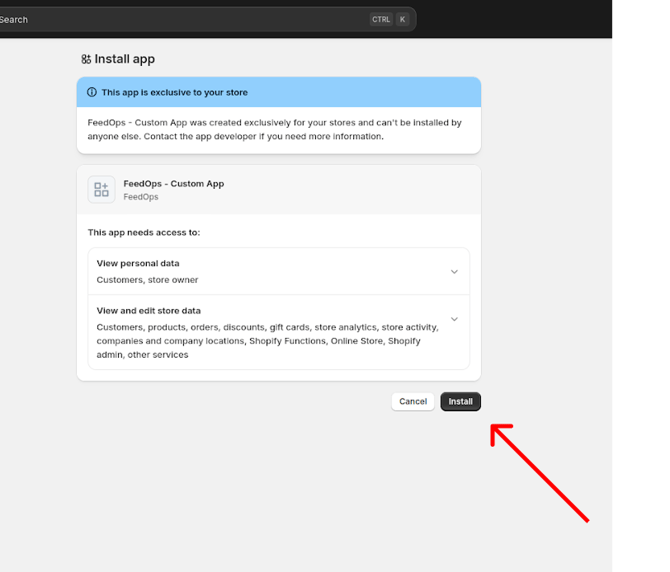
- After installation, you will be redirected back to FeedOps.
7. Sync Products to FeedOps
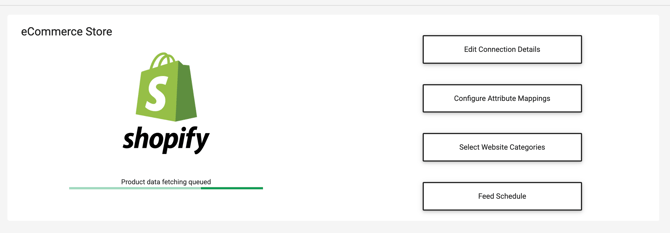
- Once the app is installed, give it a few moments to fetch products from the Shopify store.
8. Enable Channel:
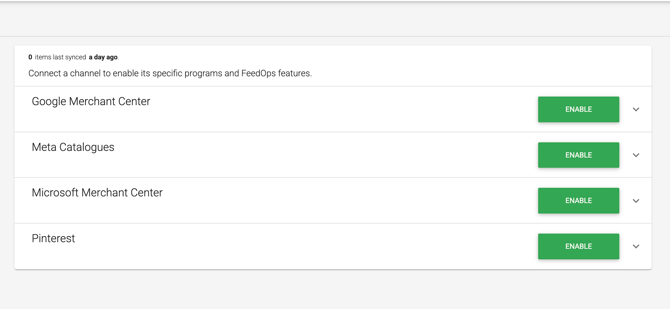
Enable the marketing channels where you want your product to be advertised.
Website settings > Product feeds